Upload Shell To Wordpress
This post was last updated on 9/5/2018I believe many people encountered this HTTP error when uploading images to WordPress.The last time this happened to us was several days ago, so I thought to share with you several solutions that may help you solve this problem.This error appears after the image is “struggling” to upload for a while. Sometimes, the image is uploaded even if the error appears.Most of the time it’s the image’s size (height and width) that causes this, so trying to upload big images could trigger the issue. Sometimes, the error can appear just once, for a particular image, but if it persists, try the solutions below.Here’s how the HTTP error looks like when you try to upload an image:In order to make a screenshot of the error, I’ve tried to upload a big sized image, and as you can see, it did trigger the error.Now let’s get to our solutions:1. By decreasing their size. Don’t add a 2000 x 1500 image, for example. If your post content area is 700px wide, don’t add an image larger than that.2.
Upload Shell Di Wordpress
Change the image’s extension from.png to.jpg, or vice versa, then upload it again.3. If the problem appears after installing a plugin, deactivate it and try it again. Some plugins can trigger the error.4. By adding this code define('WPMEMORYLIMIT', '64M') into your wp-config.php file.if your host does not allow you to increase the PHP memory limit, especially on shared environments.So, I suggest talking to your web host’s support and figure out a solution.Read this guide if you need to know.5. Add one of these codes in.htaccess:SecFilterEngine OffSecFilterScanPOST Offor# Exclude the file upload and WP CRON scripts from authenticationSatisfy AnyOrder allow,denyAllow from allDeny from noneorAddType x-mapp-php5.php (at the very top of your.htaccess file).

Website directory) through system, and our shell will be created.If don’t work,try exec because system can be disabled on the webserver from php.ini. 5 – Access our shell – Now lets check if our malicous code was successfully injected.Lets check if the shell is present.
The codes can differ from server to server, so it’s best to contact your hosting support and ask them if it’s alright to add one of the codes, or ask them to do it for you.6. Check with your hosting company to make sure that they are using PHP 5.2.4+ and they haven’t limited anything regarding uploads.Once, when we were on ( this is an affiliate link), someone from support was checking out an issue and discovered that we didn’t have the correct version of PHP. So it’s a good thing to “bug” your hosting support and ask them.7 (Update). This fix was pointed out by a couple of our readers. We thank them for that!Make sure you don’t have an apostrophe in the image file’s name (e.g.
Mary ‘s-wedding.png), because that will trigger the error as well. You might want to learn:8 (Update). If you’re using an image optimizer plugin, deactivate it and see if that solves the issue.
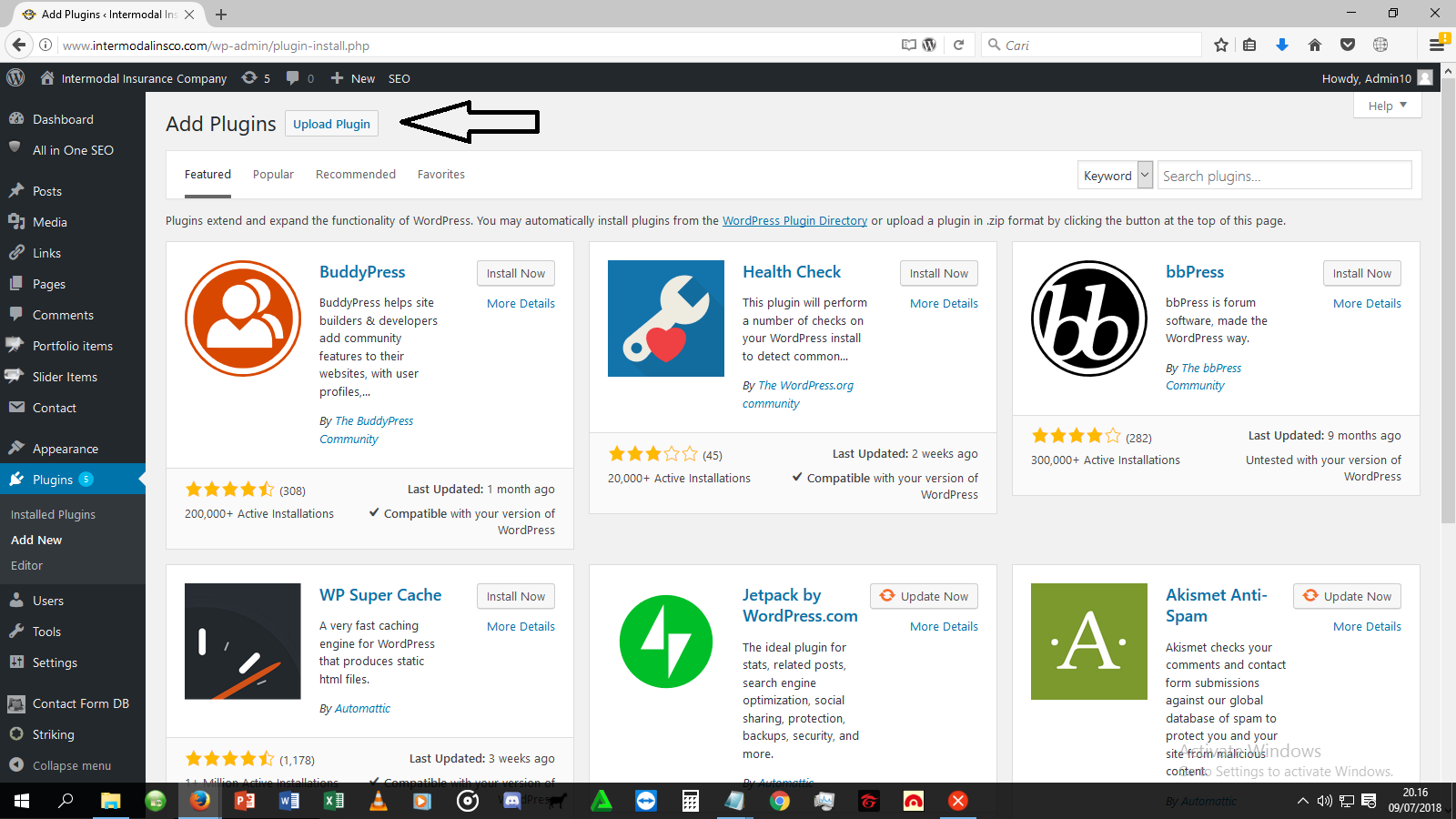
If the plugin was the cause, try different configuration settings or contact the plugin developer.We’ve experienced such an issue with the EWWW Image Optimizer plugin, which triggered the HTTP error when we were uploading PNG files. It was working fine with JPEG files, but PNGs are better in some cases, so we really wanted to fix the issue, which we did, with the help of the developer.9 (Update).
Backup your site and then (e.g. Twenty Seventeen). If the problem is solved, then it’s a theme issue or a hosting related issue (see below why).First, contact the theme developers to have a look. If they can’t seem to fix it, contact the hosting company.Scenario – this happened to us recently.
I received the HTTP error and nothing worked until I switched themes and the problem was solved. So it had something to do with the theme or the theme combined with something else.I contacted the theme developers and they managed to partially fix the issue by installing a thumbnail regeneration plugin, but when I deactivated the plugin, the problem reappeared.Since I don’t like having unnecessary plugins installed, especially for something that should work fine from the start, I didn’t let it go.After checking things out with Chrome’s Developer Tools, I’ve spotted a server error, so I contacted the hosting company which changed the PHP version to 7, and that fixed the problem!10 (Update). This was pointed out by Ellen in the comments section.Check your file path, especially if you migrated your site.Got to Settings - Media and check the path at Store uploads in this folder under Uploading Files. It should be something like /home/username/publichtml/wp-content/uploads.11 (Update).
This was pointed out by Vivek Kumar and Niche Apex in the comments. Thanks!Switch to another browser, especially if you are using Chrome, which seems to trigger the HTTP error.12 (Update). This was pointed out by BekBek in the comments.
Thanks!This fix already worked for some, and it might work for many others.Try uploading the images only via Media - Add New - then Select files.13 (Update). This was pointed out by pjmarket in the comments. Thanks!If your image file name is in another language (e.g. Farsi, Mandarin, and so on), rename it and use English.Even though WordPress allows you to upload file names using different languages, sometimes, it might cause an error.If none of the above solutions work, then you should definitely contact your hosting support. If you have a good hosting company, I’m sure they will help you out and solve the issue for you. You might also want to read:.ConclusionIt can be very annoying and frustrating getting that HTTP error when uploading images to WordPress, but I’m pretty sure that one of the above solutions will work for you.Usually, the problem is the image itself, so start with the easy solutions first, like decreasing it to web-size or changing its extension.Hope the post helped you out! Don’t forget to share!You can also and.If you want to start your own WordPress blog, or need a website for your business, our is at your disposal!
15 Feb, 2019 0Hack WordPress Websites 2019 And Upload Shell# Brute Force WORDPRESS ADMIN PANEL#Methods:0 – Using WPSCAN To Get Users Then Brute Force Them+ Enumerating usernames + Identified the following 1 user/s:+—-+———-+————+ Id Login Name +—-+———-+————+ 1 soufiane soufiane – +—-+———-+————+1 – Using WordPress Bruteforce.exe Password: inteckamed.blogspot.com/ 2 – Using Python Script Coded By MatriX CoderTn. Cracked: – That’s It Subsribe For More Videos And HAcking Tricks.